Direct Messages on Instagram sit behind a single icon, but navigating the inbox properly — especially with hidden message requests, filtered folders, and the platform’s evolving three-tab structure — trips up more users than expected. Whether you’re new to the app or just want to make sure you aren’t missing messages, this guide covers every way to access your Instagram DMs across mobile, desktop, and the less-obvious hidden inboxes most people don’t even know exist.
The Basic Method: Paper Airplane Icon
Open the Instagram app on your phone. On the home feed, look at the top-right corner of the screen. You’ll see a paper airplane icon — tap it. That’s your DM inbox.
If your Instagram account is linked to Facebook Messenger, the icon may instead appear as a chat bubble with a lightning bolt symbol. It leads to the same inbox regardless of which version you see.
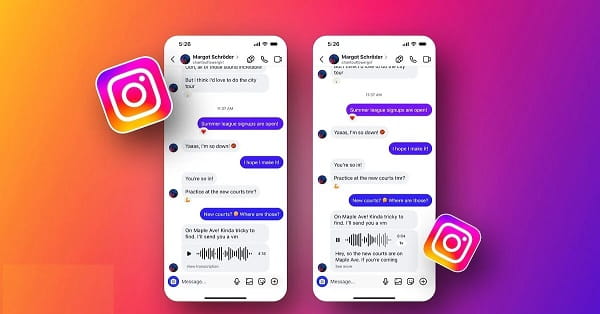
Tapping it opens your full messaging dashboard, where all conversations are listed in chronological order, most recent at the top. Unread messages appear in bold. Tap any conversation to open it and read the full thread.
Understanding the Three-Tab Inbox
Instagram’s inbox in 2026 is divided into three sections — Primary, General, and Message Requests. Many users only ever look at Primary and miss the other two entirely.
Primary holds messages from people you follow or have previously interacted with. These arrive directly and generate notifications.
General is a secondary inbox for messages Instagram considers lower priority — accounts you don’t follow but that Instagram doesn’t flag as requests either. No notification is sent for General messages, which is why many people miss them entirely.
Message Requests contains messages from people who don’t follow you and whom you don’t follow back. Every unsolicited DM from a stranger lands here first. You have to manually accept each request before the conversation opens fully. Check this tab regularly — legitimate messages from new contacts, business enquiries, and important alerts often sit here silently for days.
Checking DMs on Desktop
Instagram’s desktop interface at instagram.com carries full DM functionality. Log in, and look for the paper airplane icon in the top navigation bar. Click it — your inbox opens in the same three-tab structure as the mobile app.
You can read messages, send replies, share media, and manage requests all from the browser without touching your phone. This is particularly useful for longer conversations where typing on a keyboard is significantly faster.
Checking Message Requests
Tap the paper airplane icon to open your inbox. At the top of the screen, you’ll see tabs — tap Requests. Every pending message from non-followers appears here. Each request shows a preview of the first message. Tap any request to read the full message and choose to Accept or Decline it.
Declining a request doesn’t notify the sender. Accepting it moves the conversation into your Primary or General inbox and allows the person to see when you’ve read their messages going forward.
Checking Hidden Words Filter
Instagram has a built-in filter called Hidden Words that automatically screens out messages containing offensive language or spam. Sometimes legitimate messages get caught in this filter incorrectly.
Go to Settings → Privacy → Hidden Words. Scroll down to find a section called Hidden Message Requests — these are messages that Instagram has filtered out automatically and never showed you, even as requests. Check this periodically to ensure nothing important has been incorrectly filtered.
Checking DMs from the Instagram Website on Mobile Browser
If you don’t have the app installed, Instagram’s mobile browser version also supports DMs. Visit instagram.com on your phone’s browser, log in, and tap the message icon. The full inbox is accessible, though some features — like voice messages and certain media sharing — work better in the app.
FAQs
Q: Why am I not getting notifications for some Instagram DMs?
A: Messages landing in the General inbox or Message Requests don’t trigger notifications. Check all three inbox tabs regularly.
Q: Can I check Instagram DMs without the app?
A: Yes. Log into instagram.com from any browser on desktop or mobile and access the full DM inbox from there.
Q: What happens when I decline a message request?
A: The sender doesn’t receive any notification that you declined. The message simply disappears from your requests list.
Q: Can someone see if I’ve read their DM?
A: Yes — once a message request is accepted, Instagram shows read receipts. The sender can see when you’ve opened the message.
Q: How do I find very old DMs on Instagram?
A: Scroll up through the conversation thread — Instagram loads older messages as you scroll. There’s no separate archive for old DMs unless you’ve manually archived a conversation.