Browser version matters more than most users realise. Security vulnerabilities are patched in specific releases, websites that behave oddly on your end often trace back to an outdated browser, and developers debugging compatibility issues always need the exact build number before anything else. Chrome updates silently in the background for most users, which means the version running on your machine right now may not be what you expect. Checking it takes under twenty seconds on any device.
The Current Chrome Version in 2026
As of mid-2026, Google Chrome’s stable channel is at version 136 for desktop platforms. Chrome follows a rapid release cycle, with major version updates shipping approximately every four weeks. The version number you see follows a format like 136.0.7103.114 — the first number is the major release, the subsequent numbers represent the specific build and patch revision.
A version number beginning with anything below 134 in 2026 means Chrome hasn’t updated in several months and is likely missing critical security patches.
Method 1: Three-Dot Menu → Help → About Google Chrome
The most direct route, available on every desktop and laptop running Chrome on Windows, macOS, and Linux.
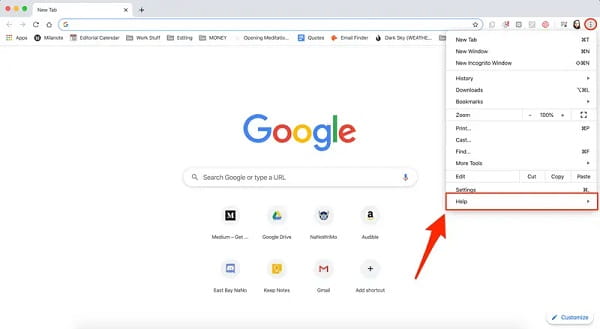
Open Google Chrome. Click the three vertical dots in the top-right corner of the browser window — this is the Chrome menu. Hover over or click Help, then select About Google Chrome.
The About Chrome page opens and immediately displays your version number prominently beneath the Google Chrome logo. The format shows something like Google Chrome 136.0.7103.114. Chrome also automatically checks for updates the moment you land on this page — if an update is available, a button appears allowing you to update and relaunch instantly. If the page says “Google Chrome is up to date,” your browser is running the latest stable release.
An even faster path to the same page is typing chrome://settings/help directly into Chrome’s address bar and pressing Enter. No menu navigation required.
Method 2: Address Bar — chrome://version
For the most detailed browser information including not just the version but also the OS, JavaScript engine version, profile path, and command-line flags, type this directly into Chrome’s address bar:
chrome://version
Press Enter. The page displays a comprehensive breakdown. The very first line shows your exact Chrome version. This method is the quickest single-step approach and works identically on Windows, macOS, Linux, Android, and iOS — making it the universal method across all platforms and device types.
Checking Chrome Version on Android
Open Chrome on your Android phone. Tap the three vertical dots in the top-right corner. Tap Settings, then scroll down and tap About Chrome. Your current Chrome version appears at the top of that page.
Alternatively, open the Google Play Store, tap your profile picture in the top right, select Manage Apps and Device, and find Chrome in the list. The installed version number is shown beneath the app name.
Checking Chrome Version on iPhone and iPad
Open Chrome on your iOS or iPadOS device. Tap the three dots at the bottom of the screen. Tap Settings, then scroll down to Google Chrome. The version number appears at the bottom of the Settings list.
On iPhone, you can also open the App Store, tap your profile photo, scroll to Installed Apps, and find Chrome to see its current version alongside any available updates.
Understanding the Version Number
A Chrome version like 136.0.7103.114 breaks down as follows. The first number — 136 — is the major version, representing a full release cycle. The second segment — 0 — is currently always zero in Chrome’s versioning scheme. The third number — 7103 — is the build number identifying the specific codebase snapshot. The fourth number — 114 — is the patch number, incrementing with hotfix releases that address specific bugs or security issues without a full version bump.
When comparing versions, the major number is what matters most for feature compatibility. The patch number is what matters for security — a higher patch number means more vulnerability fixes have been applied.
Why Keeping Chrome Updated Matters
Chrome’s auto-update mechanism handles updates silently for most users, applying them the next time the browser fully closes and reopens. The problem is that many users never fully close Chrome — they leave it running for days or weeks. A coloured dot or circle icon appears next to the three-dot menu when a pending update is waiting: green for an update available within the last 2 days, orange for updates pending for 4 days, and red for updates waiting over a week. Clicking that indicator and selecting Update Google Chrome applies the pending update immediately.
FAQs
Q: What is the latest Google Chrome version in 2026?
A: Chrome 136 is the current stable release as of mid-2026. The exact build number updates frequently with security patches throughout each major release cycle.
Q: Does Chrome update automatically without me doing anything?
A: Yes. Chrome downloads updates automatically in the background. They apply the next time you fully close and reopen the browser. If Chrome has been open for days, the update waits until you restart it.
Q: What does the coloured icon next to Chrome’s menu mean?
A: It indicates a pending update. Green means the update is recent, orange means it’s been waiting a few days, and red means it’s been waiting over a week. Click it to update immediately.
Q: Can I check Chrome version on mobile the same way as desktop?
A: The three-dots → Settings → About Chrome path works on both Android and iOS. The chrome://version address bar method also works on Android Chrome.
Q: Does checking Chrome version trigger an update automatically?
A: Opening the About Chrome page (via Help → About Google Chrome) triggers an automatic update check. If an update is available, a button appears to apply it — it doesn’t install without your confirmation on desktop.